Help desk SLAs: setting targets, priorities and breach alerts
When support requests pile up across email and your portal, "we'll get to it" isn't a plan - it's how tickets go stale and customers lose trust. A Service Level Agreement (SLA) replaces that vagueness with a promise you can measure: this type of request gets a first reply within this many hours, and a resolution within that window. This guide explains what an SLA is, the pieces that make one up, and how to set up, pause, and track SLAs in a real help desk - free - using Raiseaticket.
What is an SLA?
A Service Level Agreement is a formal commitment between a service provider and its customers that defines the standard of service to expect. In customer support specifically, an SLA sets the timeframes within which your team must respond to and resolve a ticket. It turns a fuzzy expectation ("support is responsive") into a concrete, trackable target ("first response within 4 hours during business hours").
SLAs matter for three reasons. They set expectations so customers know when to expect a reply. They create accountability, because every ticket now has a clock and an owner. And they give you data - once targets exist, you can measure how often you hit them and where you slip.
In Raiseaticket, every ticket is automatically mapped to a default SLA the moment it arrives, so you're covered from day one. The out-of-the-box policy gives a 4-hour first-response target, configured for 5 days a week, 8 hours a day. From there, every part of the policy is yours to tune.
The two SLA metrics: response time vs resolution time
Most support SLAs track two distinct clocks, and it's worth keeping them separate:
- Response time - how long until an agent sends the first meaningful reply. This is the promise customers feel most; a fast first response signals "we've got you."
- Resolution time - how long until the ticket is actually solved and closed.
Some teams only want to commit to a first response and leave resolution open-ended (complex issues can't always be boxed into a fixed window). Raiseaticket supports exactly that: you can disable resolution time on a policy so tickets carry a response-time SLA only, letting your team focus purely on fast initial engagement.
SLA priorities
Not every ticket deserves the same clock. Priorities let you promise faster targets for the requests that matter most. Raiseaticket ships with four standard priority levels:
| Priority | Typical use |
|---|---|
| Low | Minor questions, no urgency |
| Medium | Standard requests (the common case) |
| High | Business-impacting issues needing quick attention |
| Urgent | Critical, time-sensitive incidents |
The four standard levels are fixed, but you're not limited to them - you can add custom priority fields to match how your business actually triages work. Each priority gets its own response and resolution targets inside the SLA policy, so an Urgent ticket can carry a much tighter clock than a Low one.
How to set up an SLA policy in Raiseaticket
Creating a policy takes a couple of minutes:
Select Settings from the top-right menu bar.
Under General Settings, choose SLA policies.
Click Create SLA Policy.
In Operational Hours, pick either your defined operating hours or calendar hours (calendar hours run 24/7 by default).
Set response and resolution time targets for each priority.
To run a response-only SLA, uncheck resolve within to disable resolution tracking.
Add any extra priorities you need, choose the default priority for the web portal, and save.
That's the whole loop - new tickets start honoring the policy immediately.
Aligning SLAs with operating hours (and holidays)
An SLA clock should only run when your team is actually working. If you promise a 4-hour response but a ticket lands at 11 p.m., counting those overnight hours against you is neither fair nor accurate. That's why Raiseaticket ties SLA policies to operating (business) hours.
Aligning SLAs with your real schedule gives you:
- Accurate time tracking - tickets are measured only within your support window.
- Flexibility - from limited hours to full 24×7 coverage using calendar hours.
- Realistic commitments - targets you can actually meet, consistently.
You can define one or several sets of operating hours to fit different teams or regions. Holidays are handled too: tick the holidays checkbox, pick the dates from the calendar, and the SLA clock stops on those days so a public holiday never counts as a breach.
Multiple SLAs for different customers
One promise rarely fits every customer. A premium client may warrant faster targets than a free-tier user, or a team in another time zone may need its own business hours. Raiseaticket supports multiple SLA policies, automatically assigned to incoming tickets based on the sender's email address or domain.
- Custom business hours - different SLAs for different time zones or schedules.
- Domain/email matching - tickets from a given company automatically pick up that company's SLA.
- Company grouping - map users into a company (via email-domain mapping) to manage and monitor them as one.
Two things to keep in mind: a single ticket carries one SLA (the one matched at creation), and while you can run many policies across your help desk, they don't stack on an individual ticket.
Pausing the SLA timer
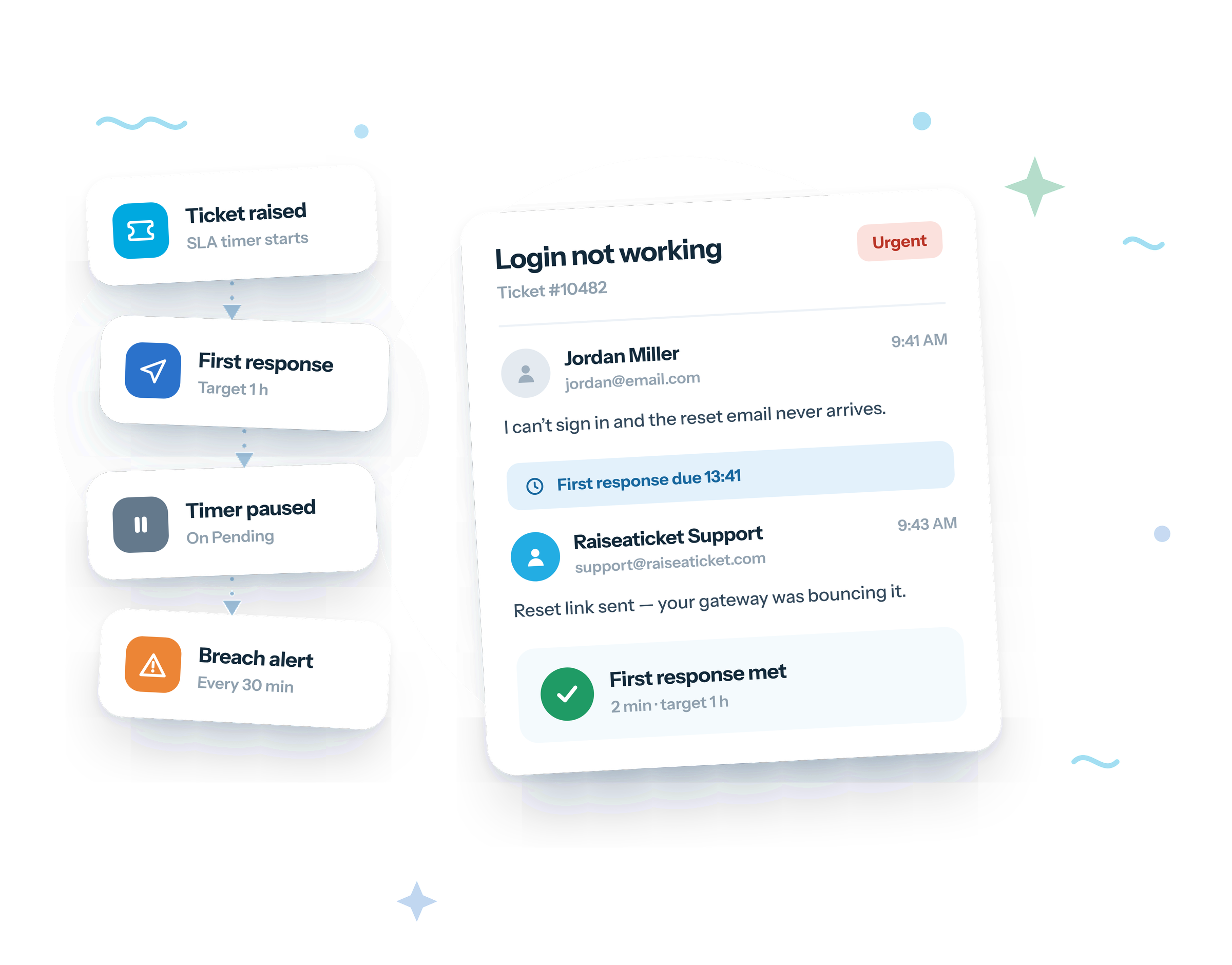
Sometimes the ball isn't in your court - you're waiting on the customer, a vendor, or a developer. Counting that wait against your SLA would punish you for someone else's delay. Raiseaticket pauses the SLA timer automatically when a ticket moves to a Pending status, and you can define your own pause statuses such as Awaiting Customer Reply or Awaiting 3rd Party Response. When the ticket becomes active again, the clock resumes - so your metrics reflect only the time you actually controlled.
Staying ahead of breaches
The point of an SLA is to hit it, not just to report on missing it. Raiseaticket lets you set SLA reminders for upcoming breaches: under the SLA policy in Settings → SLA, choose a notification interval (every 30, 20, 15, or 10 minutes) and select which admins and agents get alerted for both response and resolution breaches. The SLA Breach Notification section makes accountability visible - you can see exactly who is at risk of breaching before it happens, and act.
Measuring SLA performance
Targets only help if you track them. Raiseaticket surfaces SLA performance in two places:
- Dashboard - see totals for tickets resolved within SLA vs resolved outside SLA at a glance, and click either figure to drill into the individual tickets.
- Custom Reports - go to Reports → Custom Reports → Ticket Performance, set a date range, and include the Resolved Status field to evaluate individual ticket performance against its SLA.
Over time these numbers tell you whether your targets are realistic and where coaching or staffing needs to change.
SLA best practices
- Start with response-only if resolution windows are unpredictable, then add resolution targets once you have data.
- Tie every policy to real operating hours and exclude holidays - fair clocks build trust in the metric.
- Reserve Urgent for genuinely urgent work, or the priority loses meaning.
- Use pause statuses honestly so metrics reflect your team's actual performance.
- Review breach reports monthly and adjust targets or staffing rather than quietly missing them.
Frequently asked questions
What is the default SLA in Raiseaticket?
A 4-hour first-response policy, configured for 5 days per week, 8 hours per day - fully customizable.
Can I have more than one SLA on a single ticket?
No. A ticket carries one SLA, matched by email or domain at creation. You can run many policies across the help desk, but not stacked on one ticket.
Can I turn off resolution-time tracking?
Yes - disable resolve within on the policy to keep a response-time SLA only.
Does the SLA clock run on holidays?
Only if you let it. Tick the holidays checkbox and select the dates to exclude them from SLA calculation.
How do I get warned before an SLA breach?
Set SLA reminders (every 30/20/15/10 minutes) under the policy and choose which admins and agents are notified.
Related guides
What is customer service?
Read the guideWhat is a help desk?
Read the guideWhat is a ticketing system?
Read the guideSet up SLAs free in Raiseaticket
Get response and resolution SLAs, multiple policies, breach reminders, and within-SLA reporting - on a 100% free help desk: 5 agents, 500 tickets a month, no credit card, no trial clock.
Free foreverNo credit cardNot a 6-month trial
Ready-made starting points: an SLA policy template, an escalation matrix and a 30-day setup checklist, free to copy off the page. Or build your own in six decisions with the SLA policy workbook.